Session Zones
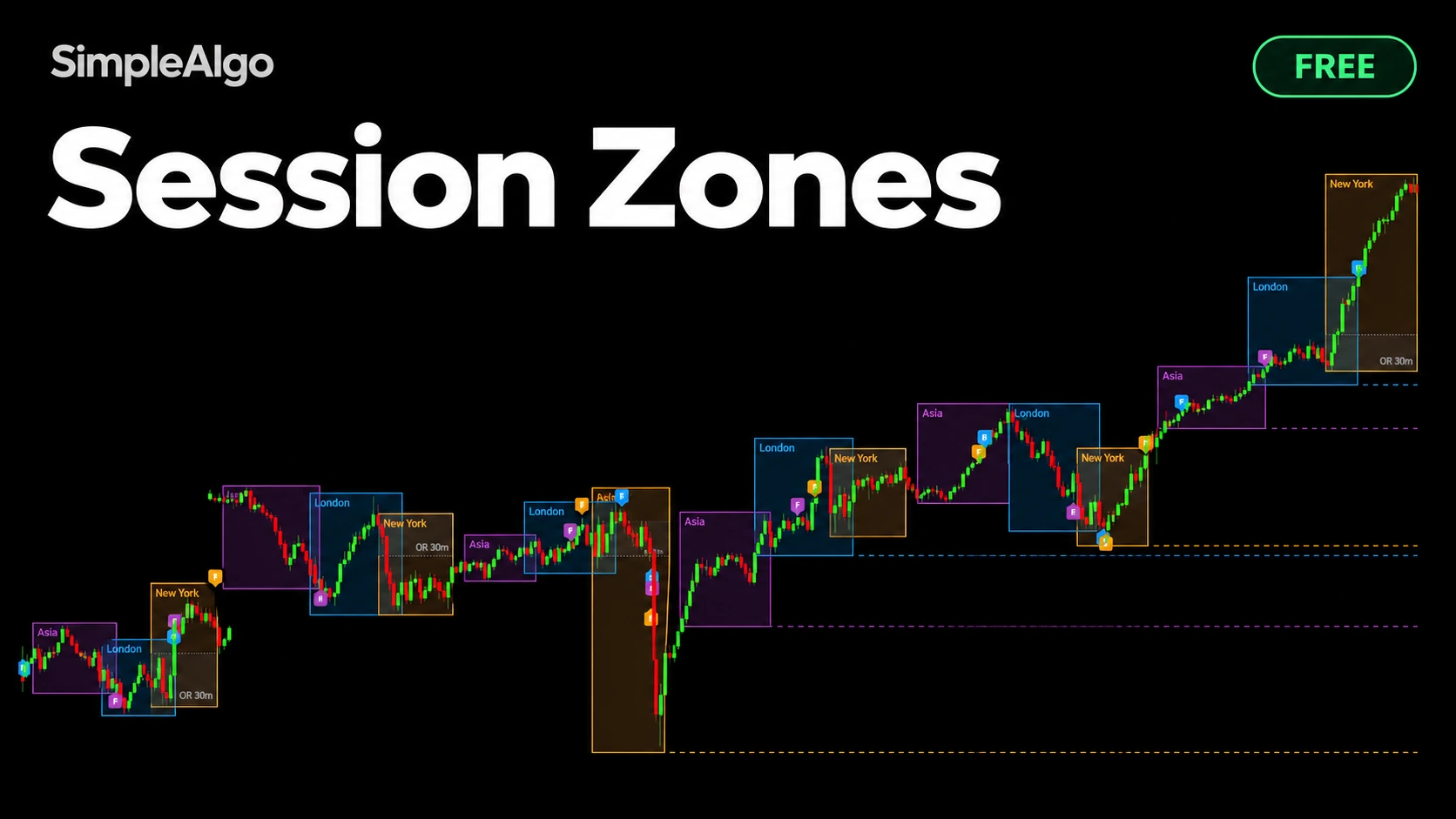
Session Zones maps the Asia, London and New York sessions on an intraday chart, keeps each session's high and low on the chart until price reaches it, then labels what happened: a Sweep that was rejected, a Break that price accepted, or a Failed Sweep. It also draws the New York opening range.
Getting started
- 1Open TradingView and click IndicatorsSearch for "Session Zones SimpleAlgo" in the Community scripts tab.
- 2Add Session Zones to your chart
- 3Keep the defaultsUse an intraday chart. The defaults use New York time; adjust session times to the market you trade.
- 4Add alerts if you want themSet them to "Once per bar close".
What you see on the chart
- A box for each session, expanding to its high and low.
- Dashed lines for each closed session's high and low, extending right until price reaches them. By default the last 5 sessions are tracked.
- S, B or F labels where a level was taken. Hover a label for the session, side, price and outcome.
- The New York opening range box (30 minutes by default).
- An optional statistics table.
| Default session | Time (New York) |
|---|---|
| Asia | 19:00 to 04:00 |
| London | 03:00 to 11:30 |
| New York | 09:30 to 16:00 |
The three outcomes
A high is taken when a bar trades above it; a low when a bar trades below it. From that bar on, confirmed closes decide the outcome.
| Label | Rule |
|---|---|
| Sweep (S) | A bar closes back on the original side of the level before the acceptance count is reached. |
| Break (B) | Price makes the set number of consecutive closes beyond the level (3 by default) without closing back. |
| Failed Sweep (F) | After a Sweep, price makes the acceptance count beyond the level within the watch window (12 bars by default). The S label changes to F. |
Labels sit at the bar where the level was taken. Because only confirmed closes are used, they don't flicker. The only change after printing is the documented Sweep to Failed Sweep update during the watch window.
By default only levels from the most recent Asia, London and New York sessions are labeled. Older levels still extend and still trigger taken alerts. Set Classify to All tracked levels to label everything.
The statistics table
The table records each Sweep and Break when it is first labeled, then after the follow-through bars (12 by default) measures how far price moved in the expected direction, in ATR units. Sweeps are counted from the moment they print, including ones that later fail, so it reflects what was known at the time.
- Events: Sweeps plus Breaks classified. Counts below 20 get an asterisk.
- Sweep and Break: the share of events with each label.
- Failed: the share of Sweeps that became Failed Sweeps.
- After Sweep / After Break: how often price moved in the reversal or continuation direction, and the average move in ATR.
How to use it
- Sweep: price ran the orders beyond the level and was rejected. Many intraday traders treat this as a potential reversal area, for example London sweeping the Asia high and closing back inside.
- Break: price held beyond the level. The broken level can be watched as a potential retest area.
- Failed Sweep: the rejection didn't hold. Stop treating the level as support or resistance.
- Untouched levels: open session highs and lows can serve as reference targets or places to manage positions.
- Opening range: a sustained hold outside the New York opening range is commonly used as a bias for the session.
Trade-offs: a lower acceptance count classifies faster but produces more Breaks that later fail. A longer watch window catches more Failed Sweeps but keeps Sweeps provisional for longer. On a 5 minute chart the defaults mean 15 minutes of acceptance and a one hour watch window.
Settings
| Setting | What it does | Default |
|---|---|---|
| Session timezone | Timezone used for the session windows. | New York |
| Sessions to keep | How many session boxes and their labels stay on the chart. | |
| Untouched levels: sessions to track | How many past sessions' highs and lows are tracked. | 5 |
| Extend session highs/lows until taken | Draws the projected lines. Tracking and alerts work either way. | On |
| Hide levels once resolved | Removes a level's line once its outcome is final. The label stays. | |
| Classify | Latest sessions only, or All tracked levels. | Latest sessions |
| Label style | Compact S / B / F or full words. | |
| Closes beyond level to confirm acceptance | Closes needed for a Break. | 3 |
| Bars to watch a Sweep for failure | Window in which a Sweep can become a Failed Sweep. | 12 |
| Statistics | Show the table, follow-through bars (12) and table position. | |
| Sessions | Enable, retime and recolour each session. | |
| Opening range | Length from the New York session start. | 30 min |
Alerts
- Sweep, Break and Failed Sweep for session highs and lows, on bar close.
- Level taken for each session's high and low, the moment price trades through.
- A dynamic alert ("Any alert() function call") naming the session, side, price and outcome, for example "London high 5250.25: swept and rejected".
Notes and limits
- Sessions use bar open times, so on higher intraday timeframes a session's first or last bar may extend slightly outside the exact window.
- Outcomes depend on the chart timeframe. The same level can be a Sweep on 1 minute and a Break on 15 minute.
- Futures and forex traders often prefer an earlier New York start.
Common questions
Yes. It's free and open source on TradingView, no membership needed.
Labels use confirmed closes only. The one documented change is a Sweep becoming a Failed Sweep within the watch window.
Session Zones is for intraday charts. On daily and higher it shows a notice and draws nothing.
By default only levels from the most recent sessions are classified. Set Classify to All tracked levels.
Yes. Each session can be enabled, retimed and recoloured, and you can pick the timezone.